How to Set Up a Public Status Page for Your Service
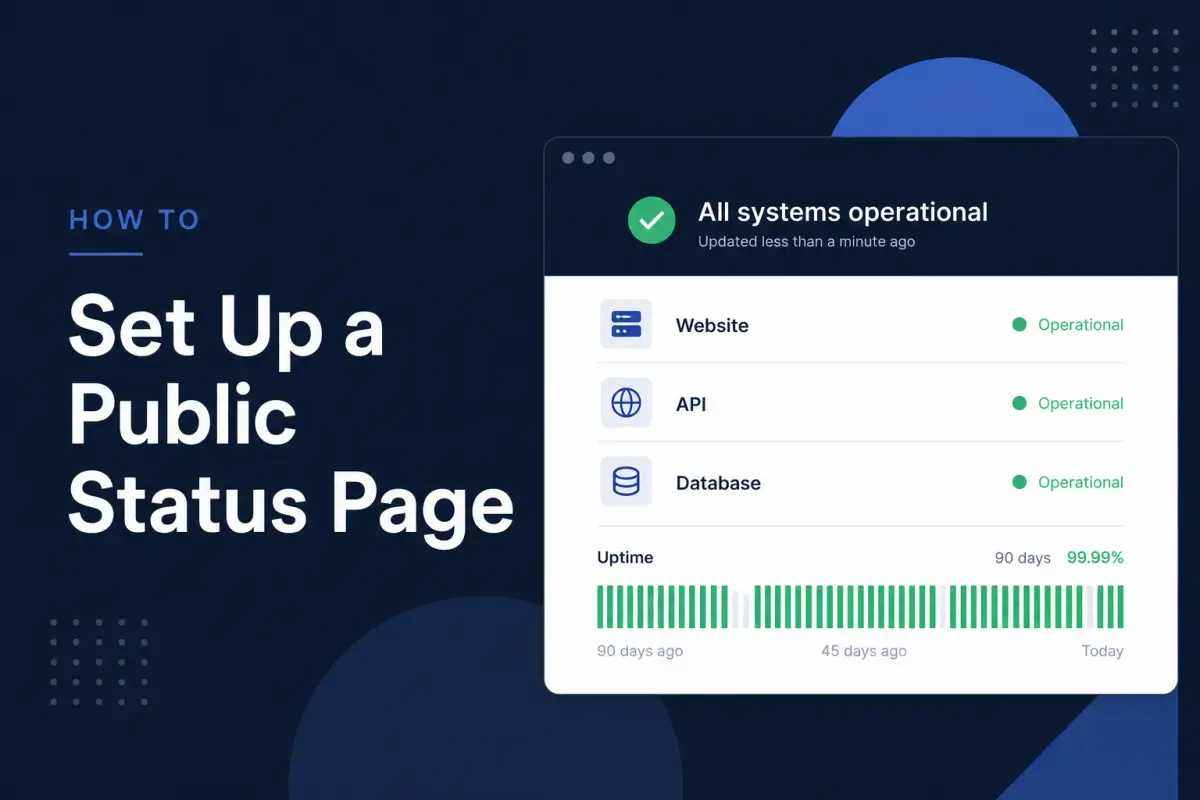
When your service goes down, the first thing users do is check whether the problem is on their end or yours. Without a status page, they'll flood your support inbox, post on social media, or simply leave.
A public status page solves this. It gives your users a single place to check service health, see ongoing incidents, and know you're on top of things. Here's how to set one up effectively.
Why You Need a Status Page
Reduces Support Volume
During an outage, your support team gets overwhelmed with "is it just me?" tickets. A status page answers that question before it's asked. Teams that use status pages report significantly fewer support tickets during incidents.
Builds Trust Through Transparency
Users don't expect perfection. They expect honesty. A status page that shows real-time health data and incident history tells users you take reliability seriously. That transparency builds more trust than claiming 100% uptime ever could.
Speeds Up Incident Communication
When something breaks, you don't want to spend time composing emails or tweets. A status page gives you a single place to post updates that all your users can see immediately.
Provides Historical Context
Over time, your status page becomes a record of your reliability. Prospective customers can see your track record. Existing customers can see how quickly you respond to issues.
What to Include on Your Status Page
Service Components
Break your service into logical components that users care about:
- Website — Is the main site loading?
- API — Are API endpoints responding?
- Dashboard — Can users access the application?
- Authentication — Can users log in?
- Payments — Is checkout working?
Don't list internal infrastructure components. Users don't care about your database cluster or message queue — they care about the features they use.
Current Status
Each component should show one of these states:
- Operational — Everything is working normally
- Degraded — The service is working but slower or with reduced functionality
- Partial Outage — Some users or features are affected
- Major Outage — The service is down for most or all users
Uptime History
Show a visual timeline of uptime over the past 30, 60, or 90 days. This gives users context. A single outage bar in an otherwise green history is reassuring — it shows the outage is unusual, not a pattern.
Active Incidents
When something is wrong, show it prominently. Include:
- What's affected
- When it started
- What you're doing about it
- Estimated time to resolution (if known)
Incident History
Keep a log of past incidents with timestamps and resolution notes. This serves as both a public record and an internal reference.
Step-by-Step Setup
1. Choose Your Monitoring Tool
Your status page should be powered by the same tool that monitors your services. This ensures the status page reflects real-time health data automatically, not manual updates that someone might forget during a stressful incident.
With Monitoristic, status pages are included on every plan. You don't need a separate tool or an additional subscription.
2. Create Your Status Page
In your monitoring dashboard:
- Navigate to Status Pages
- Click "Create Status Page"
- Give it a name (e.g., "Monitoristic Status" or "YourApp Status")
- Choose a URL slug (e.g.,
status.yourapp.comoryourapp.monitoristic.com)
3. Add Your Monitors
Select which monitors should appear on the status page. Include the services your users interact with directly. Leave out internal monitoring that would just create noise.
4. Share with Your Users
Once your status page is live, make it easy to find:
- Link from your footer — Add a "Status" link in your website footer
- Link from your help center — Include it in your support documentation
- Reference in outage communications — When you email users about an incident, link to the status page for updates
- Add to your error pages — Your 500 and 503 error pages should link to the status page
5. Keep It Updated During Incidents
A status page that shows "Operational" during an obvious outage is worse than having no status page at all. When incidents occur:
- Acknowledge quickly — Post an update within 5 minutes of detection
- Update regularly — Every 15-30 minutes until resolved, even if it's just "still investigating"
- Be specific — "We've identified the issue as a database connection problem and are working on a fix" is better than "We're looking into it"
- Post a resolution — When the issue is fixed, update the status page and include a brief summary
Best Practices
Be Honest About Your Status
Don't hide incidents. Users will notice downtime whether you acknowledge it or not. The question is whether they find out from your status page or from their own frustration.
Use Maintenance Windows
When you have planned maintenance, schedule it on your status page in advance. This prevents false alarms and shows users you're proactive about communication.
Don't Over-Segment
Listing 30 individual microservices on your status page is overwhelming and unhelpful. Group related services into 4-6 components that match how users think about your product.
Review and Iterate
After each incident, review how the status page was used. Did you update it quickly enough? Were the updates clear? Did users still contact support? Use this feedback to improve your process.
The Minimum Viable Status Page
If you're just starting out, don't overthink it. The minimum viable status page needs:
- A list of your main services with current status
- An uptime history bar
- A way to post incident updates
You can always add more detail later. The important thing is having something live that your users can check.
Getting Started
With Monitoristic, setting up a status page takes about two minutes. Status pages are included on every plan — no add-ons, no extra cost. Add your monitors, create a page, and share the link.
Your users will thank you the next time something goes wrong. And if nothing goes wrong? The status page still builds trust by showing your uptime track record every single day.
Want to understand what a status page is and why it matters? Read our explainer on what a status page is and why your users need one. Running a SaaS product? See how status pages fit into a broader SaaS monitoring strategy. And once your status page is live, pair it with maintenance windows to keep it accurate during planned downtime.