How to Set Up Webhook Alerts for Website Downtime
Telegram alerts are the fastest way to get personal downtime notifications on your phone. But what if you need alerts in a team Slack channel? Or you want to log every incident to a database? Or trigger an automated response when your site goes down?
That's what webhooks are for.
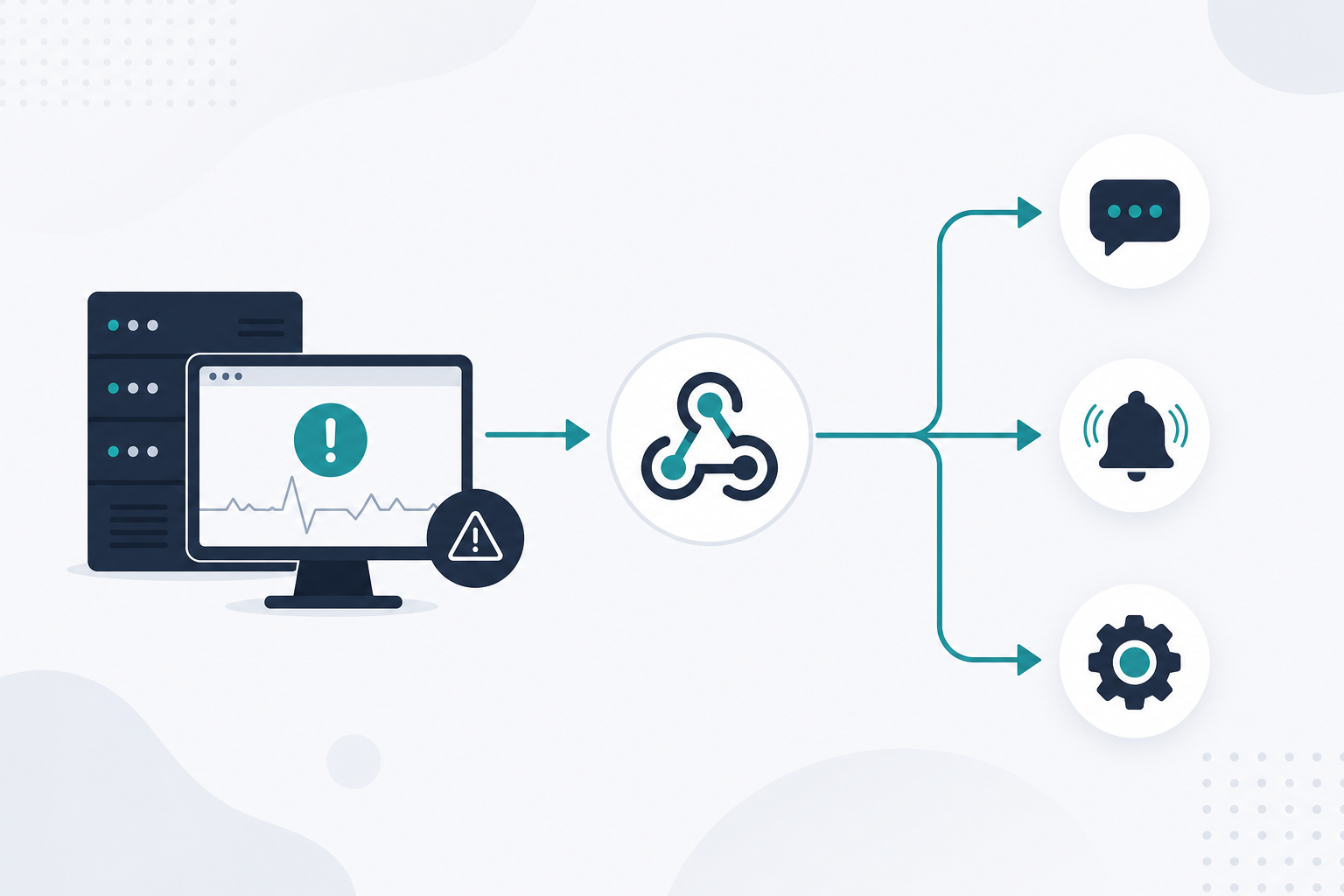
A webhook is a simple concept: when something happens (your site goes down), your monitoring tool sends an HTTP POST request to a URL you specify. What happens at that URL is up to you. It could be a Slack channel, a Discord server, a PagerDuty integration, or your own custom backend.
Here's how to set it up.
What You Need
- An uptime monitoring tool that supports webhooks (Monitoristic includes webhooks on all plans)
- A destination URL — either from a service like Slack/Discord, or your own HTTP endpoint
That's it. No SDKs, no libraries, no API keys to manage.
Step 1: Get Your Webhook URL
Where your alerts end up depends on what you're connecting to.
Slack
- Open your Slack workspace and go to the channel where you want alerts
- Go to Settings & administration > Manage apps > Incoming Webhooks
- Click Add New Webhook to Workspace
- Select the channel and authorize
- Copy the webhook URL — it looks like
https://hooks.slack.com/services/T.../B.../xxx
Discord
- Open your Discord server and go to the channel settings
- Navigate to Integrations > Webhooks
- Click New Webhook
- Name it something like "Uptime Alerts" and copy the URL
- Append
/slackto the URL to use Slack-compatible formatting — Discord supports this natively
Your Own Endpoint
If you're routing to a custom backend, you need an HTTP endpoint that:
- Accepts POST requests
- Parses JSON from the request body
- Returns a 2xx status code to confirm receipt
A minimal example in Node.js:
app.post('/webhook/downtime', (req, res) => {
  const { monitor, status, timestamp } = req.body;
  // Log it, notify your team, trigger a runbook
  console.log(`${monitor} is ${status} at ${timestamp}`);
  res.sendStatus(200);
});
Step 2: Add the Webhook to Your Monitor
In Monitoristic, go to your dashboard and navigate to Notification Channels > Add Webhook:
- Name: Give it a label you'll recognize — "Slack #engineering" or "PagerDuty Prod"
- URL: Paste the webhook URL from Step 1
- Headers (optional): Add custom headers if your endpoint requires authentication, like
Authorization: Bearer your-token
Save it, and the webhook is active. Every monitor you create can be connected to this notification channel.
For the full technical reference — payload structure, headers, timeout behavior — see the webhook documentation.
Step 3: Understand the Payload
When a monitor triggers, the webhook sends a JSON payload with everything you need to act on the incident:
- Monitor name and URL — which site is affected
- Status — whether it's down or recovered
- HTTP status code — what the failed check returned (500, 503, timeout, etc.)
- Timestamp — exactly when the event occurred
- Response time — how long the check took before failing
This structured data is what makes webhooks powerful. Instead of a plain text message, you get machine-readable data you can parse, filter, and route however you want.
Common Webhook Setups
Team alerts in Slack or Discord
The most common setup. Route all downtime alerts to a dedicated channel so the whole team sees them. No one needs to check a dashboard — the alert comes to where the team already works.
Escalation chains
Send webhooks to a service like PagerDuty or Opsgenie. They handle on-call routing, escalation rules, and acknowledgment tracking. Your monitoring tool detects the problem; the incident management tool makes sure the right person responds.
Custom logging
Send every alert to your own API and log it to a database. Build your own incident history, generate monthly reports, or feed the data into an internal dashboard. Useful if you need audit trails or SLA compliance records.
Automated responses
Trigger automated actions when a site goes down. Restart a service, spin up a failover, clear a cache, or roll back a deployment. The webhook is just the trigger — your automation layer handles the rest.
Webhooks vs. Other Notification Methods
| Webhooks | Telegram | ||
|---|---|---|---|
| Setup time | 5 minutes | 2 minutes | 1 minute |
| Best for | Team workflows, integrations, automation | Personal mobile alerts | Low-urgency awareness |
| Flexibility | Route to any HTTP endpoint | Telegram only | Inbox only |
| Machine-readable | Yes (JSON) | No | No |
| Custom automation | Yes | No | No |
Most teams use a combination. Telegram for personal phone alerts when you're on call. Webhooks for the team channel and automated workflows. They complement each other.
Tips for Reliable Webhook Alerting
Test before you need it. Don't wait for a real outage to find out your webhook URL has a typo. Most monitoring tools let you send a test notification — use it.
Monitor your monitoring. If your webhook endpoint is down when your site goes down, you won't get the alert. Route critical alerts to at least two channels — a webhook and Telegram, for example.
Keep payloads small. If you're building a custom endpoint, process the webhook data asynchronously. Accept the request, return 200 immediately, then handle the logic in the background. Slow responses can cause timeout issues.
Use meaningful channel names. When you have five webhook channels named "Webhook 1" through "Webhook 5," debugging which one stopped working is painful. Name them by destination: "Slack Ops," "PagerDuty Prod," "Custom Logger."
Get Started
Webhooks turn your uptime monitor from a passive checker into an active part of your incident response workflow. Set one up in Monitoristic — it takes five minutes, and every plan includes unlimited webhook channels.
If you're looking for something simpler, start with Telegram alerts. You can always add webhooks later as your workflow grows.